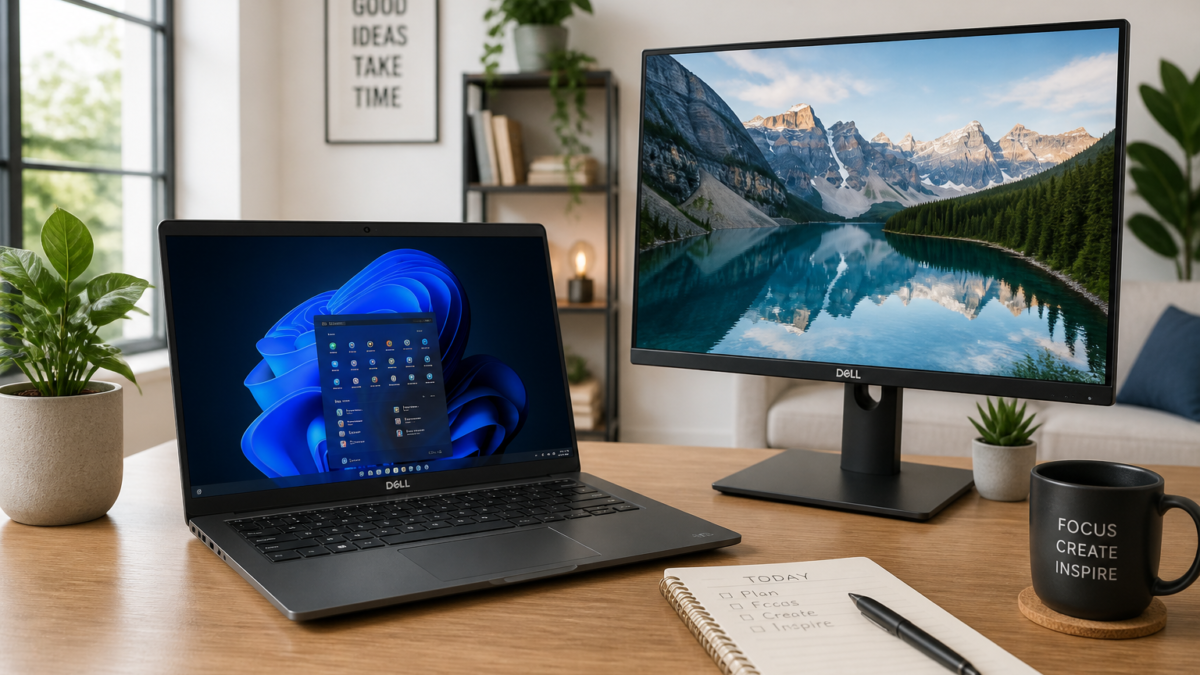
The right Dell computer is the one that meets your software, portability, performance, and support requirements without charging you for capabilities you will not use. Begin with your workload, then compare exact configurations—not just product-family names or advertised discounts.
Dell reorganized its PC portfolio in 2026, so familiar names such as Inspiron and OptiPlex may appear alongside newer branding while older inventory moves through stores. This guide explains the current families and the checks U.S. shoppers should complete before buying a Dell laptop or desktop.
Understand Dell’s Current Computer Families
Dell’s personal-use portfolio is now organized primarily around Dell, XPS, and Alienware. Commercial computers use Dell Pro branding, with Dell Pro Precision covering demanding workstation applications. Dell explains these changes in its official 2026 portfolio announcement.
| Product family | Designed for | What to examine closely |
|---|---|---|
| Dell | Everyday home use, school, general office work, and mainstream computing | Display quality, memory, storage, ports, webcam, and battery capacity |
| XPS | Premium consumer laptops, frequent travel, demanding productivity, and buyers who prioritize design and display quality | Port selection, integrated memory, display power consumption, and configuration price |
| Alienware | PC gaming and other graphics-intensive workloads | Graphics processor, cooling, display refresh rate, physical size, power requirements, and upgrade access |
| Dell Pro | Business users, managed company fleets, and organizations needing commercial support or administration features | Management features, security options, service plan, deployment requirements, and business purchasing terms |
| Dell Pro Precision | Engineering, design, scientific, media, and other professional workstation workloads | Application certification, processor and professional graphics options, memory capacity, and service coverage |
You may still encounter systems carrying earlier names. That does not automatically make them poor purchases, but it increases the importance of checking the precise model number, processor generation, configuration, warranty status, and release context. Do not assume that two computers sharing a family name have similar performance.
PowerEdge servers are a separate category intended for server and data-infrastructure requirements. They are not substitutes for ordinary home or office desktops and generally require different expertise, software, networking, and support planning.
Match the Computer to the Workload
A use-case list provides a better starting point than choosing the most expensive computer within your budget. Write down the programs, games, peripherals, and displays you expect to use before comparing products.
Basic home use and online learning
Web browsing, video calls, streaming, document editing, and school portals usually do not require a dedicated graphics processor. Prioritize enough memory for several open applications, solid-state storage, a comfortable keyboard, a clear webcam, and a display you can view for extended periods.
Office work and small-business use
Spreadsheets, accounting tools, browser-based systems, presentations, and frequent video meetings benefit from dependable multitasking performance and practical connectivity. Check for the ports needed by your monitor, headset, external storage, printer, and docking station. A Dell Pro computer may make sense when commercial management features or a particular service arrangement matter, but an everyday Dell system may be sufficient for an individual business owner.
Travel and hybrid work
Weight, charger size, battery behavior, webcam quality, wireless connectivity, and durability can matter more than maximum processor performance. A high-resolution or high-refresh-rate display may look better while also using more power. Confirm whether the laptop can charge through a compatible USB-C adapter and whether you will need a hub for everyday accessories.
Content creation and technical applications
Photo editing, video production, 3D design, software development, and engineering programs have different requirements. Check the software publisher’s recommended processor, memory, graphics, storage, and operating-system specifications. Dell Pro Precision may be appropriate when an organization needs workstation-class options or application certifications, while some XPS and Alienware configurations can handle demanding creative work without serving the same commercial role.
Gaming
Start with the games you want to run and the resolution and frame rate you expect. Compare the exact graphics processor rather than relying on the Alienware name alone. Cooling design, system power limits, memory configuration, display refresh rate, and storage capacity can materially affect the experience. A gaming laptop offers portability, but a desktop may provide more component flexibility and sustained cooling.
Choose Specifications That Fit Your Needs
Processor and platform
Dell configurations may use Intel, AMD, or Snapdragon processors, depending on the model. Processor names alone do not establish how fast a computer will be; generation, product tier, power limits, cooling, and workload all matter.
Snapdragon-based Windows PCs use Arm architecture. They can offer advantages for certain portable designs, but shoppers should verify that essential applications, drivers, printers, security tools, games, and specialized peripherals work as expected. Intel- and AMD-based systems remain the more straightforward choice when compatibility with older or specialized Windows software is uncertain.
Memory
Memory affects how smoothly the computer handles multiple browser tabs and applications. For light tasks, modest configurations may be adequate. More demanding multitasking, large creative projects, development tools, virtual machines, and professional applications require more capacity.
Do not assume memory can be added later. Some Dell laptops use integrated or soldered memory that cannot be upgraded. If memory is not replaceable, choose enough at checkout for the period you expect to keep the computer.
Storage
An SSD provides system and application storage. Estimate the space needed for Windows, programs, local documents, photos, video, games, and offline cloud files. A smaller drive can work when most data is stored securely elsewhere, but large games and media libraries consume space quickly.
Check whether the computer has an additional storage slot and whether opening it affects service procedures. External storage is an alternative, but it adds another device and may not match the speed or convenience of internal storage.
Display and graphics
Resolution is only one measure of display quality. Also consider brightness, color coverage, contrast, refresh rate, touch support, glare, and aspect ratio. Buyers editing photos or video should pay particular attention to color performance. Frequent travelers may prefer an efficient display over the highest available resolution.
Integrated graphics can handle ordinary productivity, streaming, and some light creative work. A dedicated graphics processor is more relevant for modern games, 3D applications, effects-heavy video work, and software that explicitly accelerates tasks through the GPU.
Ports, camera, and wireless features
Count the devices you regularly connect. Look for the appropriate combination of USB-A, USB-C, Thunderbolt or USB4 where offered, HDMI, audio, Ethernet, and memory-card access. Port capabilities can differ even when connectors look identical, so verify charging, display-output, and data-transfer support in the specifications.
For video calls, examine camera resolution, microphone features, and privacy controls. Confirm the wireless standards supported by both the computer and your router rather than paying more for a capability your network cannot use.
Battery claims
Advertised battery results come from a particular test configuration and method. Real runtime varies with the display, brightness, wireless activity, processor load, video calls, connected devices, power settings, and battery condition. Compare independent testing of the same configuration when possible, not merely another computer carrying the same family name.
Laptop or Desktop: Which Offers Better Value?
A laptop is appropriate when the computer must move between rooms, school, an office, or travel locations. Its screen, keyboard, trackpad, battery, camera, and speakers are included, but internal upgrades and repairs may be more restricted.
A desktop is usually more suitable for a permanent workspace, multiple monitors, prolonged high-performance work, or buyers who want easier access to selected components. Remember to include a monitor, keyboard, mouse, webcam, speakers, and possibly Wi-Fi in the total cost if they are not already available.
All-in-one desktops reduce cable clutter by placing the computer behind the display, but they combine the computer and screen into one unit. Traditional towers generally provide more flexibility, although upgrade access still varies by exact chassis and power-supply design.
Verify the Exact Configuration and Upgradeability

Product pages can group several substantially different configurations under one model. Record the exact model and selected components before comparing prices or reading reviews. A review covering a different display, processor, battery, or graphics option may not reflect the system in your cart.
Before relying on future upgrades, check the specifications and service manual for that exact model. Confirm:
- Whether the memory is soldered, replaceable, or partially integrated
- The number of memory slots and supported capacity
- The number, size, and interface of storage slots
- Whether components are readily accessible
- Any procedures, tools, parts, or service precautions required
- Whether a desktop’s power supply and chassis can support a planned graphics upgrade
Buying more memory or storage initially can be sensible when components are integrated, but “future-proofing” has limits. Pay for capacity tied to a realistic workload rather than purchasing the maximum configuration without a defined need.
Compare the Real Purchase Cost
Dell pricing changes with configurations, inventory, and promotions, making a static price range unreliable. A large displayed discount is not proof that a computer is a good value, and frequent promotions do not establish that a model has quality problems.
Compare the final configured price with systems offering similar processors, memory, storage, displays, graphics, ports, and coverage. Include these possible extras:
- A USB-C adapter, dock, or port hub
- An external monitor and cables
- Additional storage or memory, where upgradeable
- Software subscriptions and post-trial licensing costs
- Extended support or accidental-damage coverage
- Shipping, applicable taxes, and financing costs
- Gaming accessories or a higher-capacity power setup
Bundled software may be a trial rather than a permanent license. Check renewal terms and remove unwanted programs rather than treating every bundle as added value.
Review Warranty, Support, and Return Terms
Dell’s limited hardware warranty duration varies by product and purchase documentation. A longer or shorter term alone does not prove that a computer is more or less durable. Review the coverage period, covered components, service method, and exclusions in the Dell limited hardware warranty before checkout.
Base warranty support generally does not cover accidents, abuse, or misuse. If drops, spills, or other accidental events are a significant concern, determine whether separately purchased accidental-damage coverage applies and read its exclusions. Enhanced support plans may also differ in availability, contact methods, response targets, and repair procedures.
Dell’s U.S. return policy generally gives eligible direct purchases a 30-day return period, subject to exclusions and detailed terms. Verify current eligibility through the official return policy, particularly for software, customized orders, business purchases, fees, and products bought from another retailer. A retailer’s return rules apply when it—not Dell—sold the computer.
Financing, Trade-In, and Recycling Considerations
Dell’s current U.S. consumer financing branding is Dell Pay, which may include credit and installment options for eligible customers. Terms can change, so compare the total repayment amount with the cash price. If an offer includes deferred interest, read the conditions carefully and understand the consequences of not satisfying them within the promotional period.
Dell also operates a trade-in process for eligible devices. An estimated value is not the same as guaranteed cash, and the program’s inspection, eligibility, credit, data-removal, and shipping terms should be reviewed before sending a device. Back up important files and securely erase personal information first.
If a device has no trade-in value, Dell provides a mail-back recycling option for eligible PCs and laptops. Recycling is preferable to placing electronics or batteries in household trash, but local handling requirements and program eligibility still apply.
A Pre-Purchase Dell Checklist
- Define the workload. List your required applications, games, peripherals, and expected usage locations.
- Select the appropriate family. Compare Dell for mainstream use, XPS for premium consumer laptops, Alienware for gaming, and Dell Pro or Dell Pro Precision for relevant business and workstation needs.
- Record the exact configuration. Save the model number, processor, memory, storage, graphics, display, battery, and operating-system details.
- Verify compatibility. Check essential software, peripherals, docks, displays, and drivers—especially for an Arm-based Windows system.
- Check service documentation. Confirm memory and storage upgradeability instead of assuming components are replaceable.
- Calculate total cost. Include adapters, monitors, software, coverage, financing, and accessories.
- Read purchase terms. Review the applicable seller’s return policy, warranty, support level, and accidental-damage exclusions.
- Compare equivalent configurations. Ignore percentage discounts until you have compared the components and coverage included in the final price.
Frequently Asked Questions
Which Dell laptop is suitable for a student?
There is no single student model that fits every course. An everyday Dell laptop may cover writing, research, video classes, and browser-based assignments. Engineering, design, media, or computing programs may require more memory, storage, graphics performance, or specific processor compatibility. Use the school or software publisher’s requirements before selecting a configuration.
Is XPS better than a regular Dell laptop?
XPS is Dell’s premium consumer laptop family, but “better” depends on the buyer. An XPS system may offer design, display, or portability advantages, while an everyday Dell laptop may provide the necessary performance at a lower configured price. Compare ports, memory upgradeability, battery needs, and exact components.
What is the difference between Dell and Dell Pro?
Dell systems primarily address personal and mainstream computing needs. Dell Pro is the commercial brand for business computers and related management, security, and service requirements. Individual shoppers can still consider either where available, but they should not pay for commercial features they do not need.
Can a Dell laptop’s RAM or storage be upgraded?
It depends on the exact model. Some laptops have integrated memory that cannot be replaced, while others provide accessible memory or storage slots. Consult the model-specific specifications and service manual before purchasing components or counting on a future upgrade.
Should I buy directly from Dell or from a retailer?
Compare the exact configuration, final price, delivery estimate, return rules, warranty status, and support arrangement. Retail configurations may differ from those sold directly by Dell even when the product names look similar. The seller’s return policy is particularly important if you need to test compatibility or portability after delivery.
Choose by Requirements, Not Branding Alone
For general home, school, and office work, begin with Dell’s everyday computers. Consider XPS when premium construction, display options, or portable design justify the additional cost. Alienware is the relevant starting point for gaming, while Dell Pro and Dell Pro Precision serve business and professional workstation requirements.
Whichever family you choose, verify the exact configuration, software compatibility, upgrade limitations, warranty coverage, return terms, and complete purchase cost. Those details are more useful than a broad brand reputation or a promotional discount when deciding whether a Dell computer will remain suitable over time.
